1. تعارف
This manual provides comprehensive instructions for the setup, operation, and maintenance of your Displays2go Advertising Multimedia Kiosk, model DF043TLB2. This 43-inch multi-touch kiosk is designed for displaying interactive digital content in various public and commercial environments. Please read this manual thoroughly before use to ensure proper functionality and safety.
2. حفاظتی معلومات
- Ensure the kiosk is placed on a stable, level surface to prevent tipping.
- یونٹ کو نمی، بارش یا انتہائی درجہ حرارت کے سامنے نہ رکھیں۔
- صرف فراہم کردہ پاور اڈاپٹر استعمال کریں۔
- زیادہ گرمی سے بچنے کے لیے وینٹیلیشن کے سوراخوں کو صاف رکھیں۔
- خود یونٹ کو کھولنے یا مرمت کرنے کی کوشش نہ کریں۔ تمام خدمات کو اہل اہلکاروں سے رجوع کریں۔
- یونٹ کو صاف کرنے یا منتقل کرنے سے پہلے بجلی منقطع کریں۔
3. پیکیج کے مشمولات
تصدیق کریں کہ تمام اشیاء پیکیج میں موجود ہیں:
- Displays2go Advertising Multimedia Kiosk (DF043TLB2)
- پاور کیبل
- Four Locking Casters (pre-installed or to be installed)
- صارف دستی (یہ دستاویز)
4. سیٹ اپ ہدایات
4.1. پیک کھولنا اور جگہ کا تعین کرنا
Carefully remove the kiosk from its packaging. Place the unit on a flat, stable surface. Ensure adequate space around the kiosk for ventilation and access.

شکل 1: سامنے view of the Displays2go Advertising Multimedia Kiosk.

شکل 2: طرف view of the kiosk displaying content.

شکل 3: پیچھے view of the kiosk, showing ventilation and access panel.
ویڈیو 1: ایک 360 ڈگری view of the 43-inch Floor Standing Poster, showcasing its physical design and features from all angles.
4.2. Caster Installation (if not pre-installed)
If the four locking casters are not pre-installed, carefully tilt the kiosk and attach each caster to the designated mounting points on the base. Ensure they are securely fastened. Lock the casters once the kiosk is in its final position to prevent unintended movement.
4.3. پاور کنکشن
- Locate the power input port on the back of the kiosk.
- Connect the provided power cable to the kiosk and then to a standard electrical outlet.
- Flip the power switch to the "ON" position. The kiosk will begin to boot up.

شکل 4: تفصیلی view of the kiosk's connectivity ports and power switch.
5. آپریٹنگ ہدایات
5.1. Initial Boot-Up and Android 11 OS
Upon powering on, the kiosk will boot into the Android 11 operating system. The initial setup may require you to configure basic settings such as language, Wi-Fi connection, and time zone. Follow the on-screen prompts.
Video 2: Product Showcase of the Displays2go Digital Poster, highlighting various features and applications. This video provides a general overview of the kiosk's capabilities, including its touch functionality and design.
5.2. Using the Multi-Touch Screen
The kiosk features a 10-point IR touchscreen, allowing for interactive gestures such as tapping, swiping, and multi-finger operations. Navigate the Android interface and interactive applications by touching the screen directly.
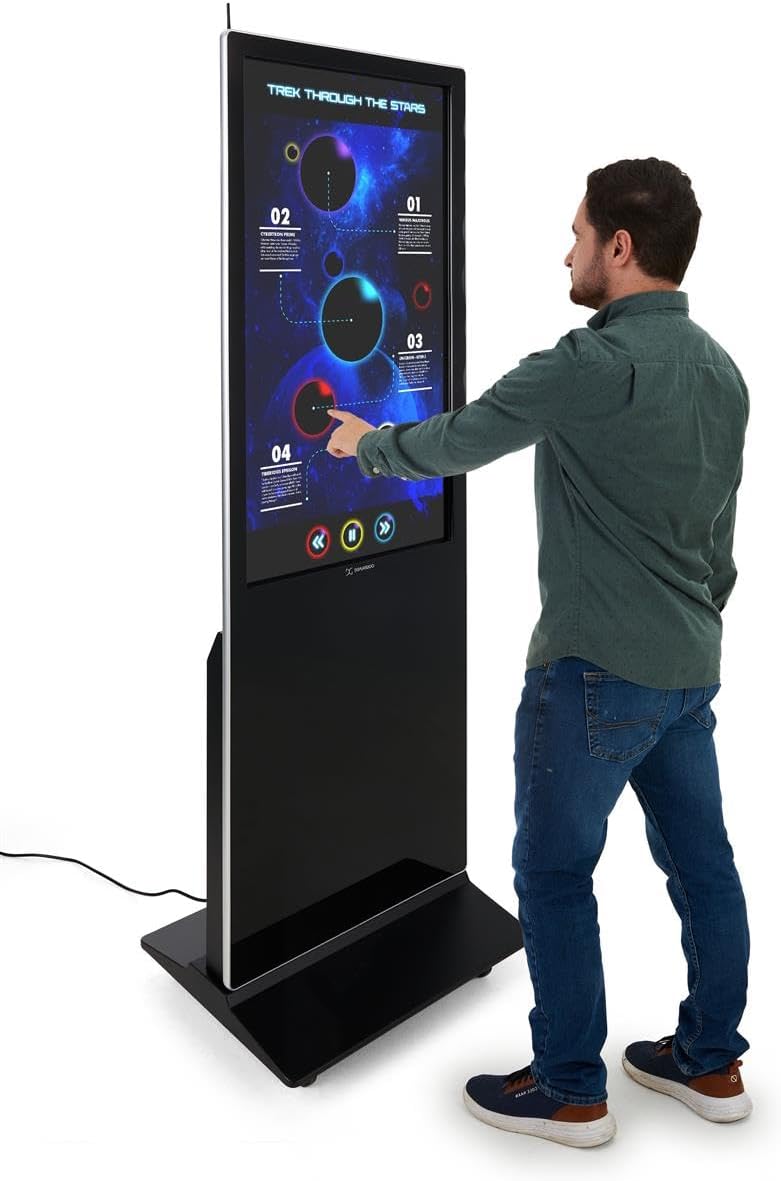
Figure 5: A user interacting with the multi-touch screen of the kiosk.
5.3. Content Upload and Management
There are several methods to upload and manage content on your kiosk:
- USB پلگ اینڈ پلے: Connect a USB drive to one of the three available USB ports. The kiosk will detect the drive, allowing you to transfer media files (images, videos, documents) directly to the internal storage.
- Cloud Storage/CMS: Connect the kiosk to your network via Wi-Fi or Ethernet (LAN port). You can then access your personal cloud storage accounts or integrate with a connected content management system (CMS) for remote content updates.
5.4. Using the DiViEX Slideshow App
The kiosk comes with the DiViEX slideshow app pre-installed. This application allows you to create and manage captivating slideshows with various borders, aspect ratios, and theme sharing capabilities. Refer to the in-app help or the DiViEX documentation for detailed usage instructions.
Video 3: Demonstration of the DiViEX Slideshow App. This video illustrates how to use the pre-installed application to create and customize digital content for display on the kiosk.
5.5. آڈیو آؤٹ پٹ۔
The kiosk is equipped with dual 8W speakers for audio output. Adjust the volume through the Android operating system settings or within the media playback application.
6 دیکھ بھال
6.1. Cleaning the Screen and Casing
- صفائی سے پہلے ہمیشہ پاور کیبل کو منقطع کریں۔
- تھوڑا سا نرم، لنٹ سے پاک کپڑا استعمال کریں۔ampened with water or a non-abrasive screen cleaner to wipe the screen.
- سی کے لیےasing, use a soft, dry cloth. Avoid harsh chemicals or abrasive materials.
6.2. سافٹ ویئر اپڈیٹس
Periodically check for system updates through the Android settings menu to ensure optimal performance and security. Ensure the kiosk is connected to the internet during updates.
7 خرابیوں کا سراغ لگانا
| مسئلہ | ممکنہ وجہ | حل |
|---|---|---|
| Kiosk does not power on. | Power cable disconnected; power switch off; no power from outlet. | Check power cable connection; ensure power switch is ON; test outlet with another device. |
| ٹچ اسکرین غیر جوابدہ۔ | Software glitch; screen dirty; external interference. | Restart the kiosk; clean the screen; ensure no objects are blocking the IR sensors. |
| No content displayed. | No media loaded; incorrect app selected; network issue for streaming content. | میڈیا کی تصدیق کریں۔ files are present; ensure the correct application (e.g., DiViEX) is running; check network connection. |
| کوئی آڈیو نہیں۔ | Volume too low; audio muted; application audio settings. | Increase volume in Android settings; unmute audio; check audio settings within the playing application. |
8. وضاحتیں
| فیچر | تفصیل |
|---|---|
| ماڈل | DF043TLB2 |
| اسکرین کا سائز | 43 انچ |
| قرارداد | 1920 x 1080 (1080p HD) |
| ٹچ ٹکنالوجی | 10pt IR Touchscreen |
| آپریٹنگ سسٹم | اینڈرائیڈ 11 |
| اندرونی اسٹوریج | 32 جی بی |
| رام | 4 جی بی |
| USB پورٹس | 3 |
| مقررین | دوہری 8W |
| پہلو کا تناسب | 1.78:1 |
| تصویری برعکس تناسب | 1200:1 |
| مصنوع کے طول و عرض (W x H x D) | 24.4 x 56 x 9 انچ |
| کارخانہ دار | Displays2go |
9. وارنٹی اور سپورٹ
For warranty information and technical support, please refer to the Displays2go official webسائٹ یا ان کی کسٹمر سروس سے رابطہ کریں۔ وارنٹی کے دعووں کے لیے اپنی خریداری کی رسید اپنے پاس رکھیں۔
Displays2go Contact Information:
- Webسائٹ: www.displays2go.com
- فون: 1-844-221-3393


