1. تعارف
This manual provides comprehensive instructions for the operation and maintenance of your TATTMUSE Portable Thermal Printer. Designed for convenience and portability, this inkless printer supports various paper sizes and offers seamless connectivity for on-the-go printing.
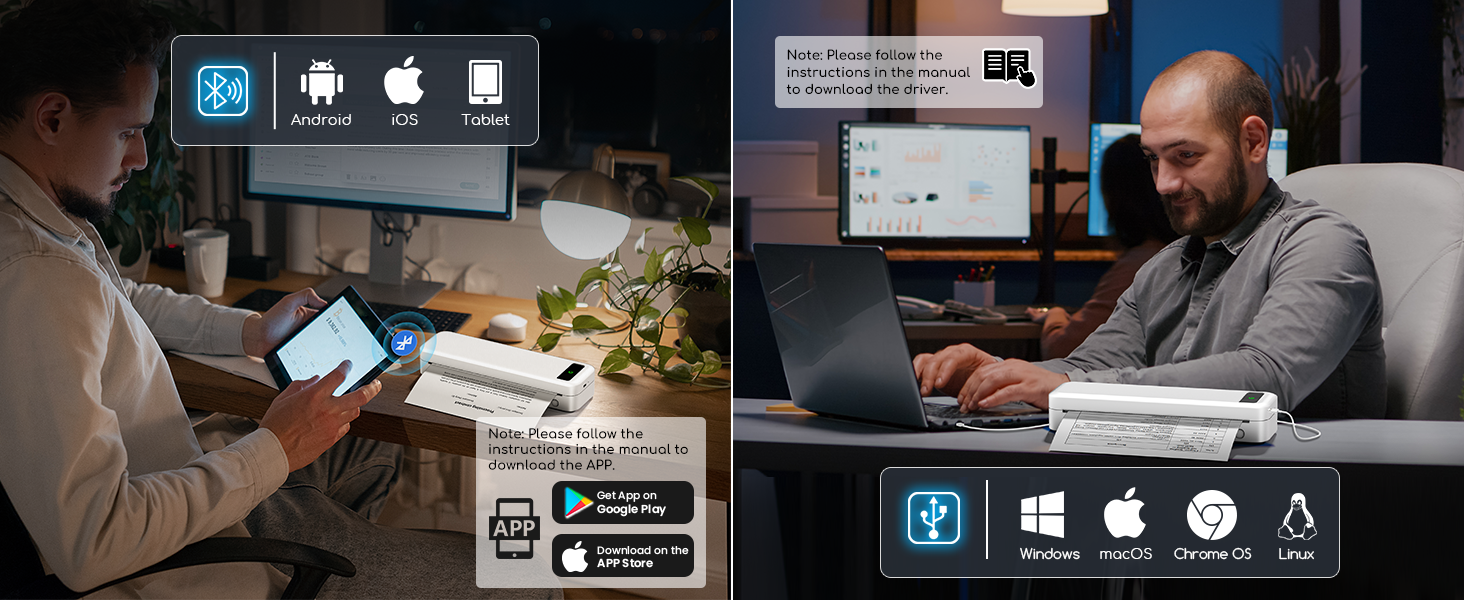
Image: The TATTMUSE Portable Thermal Printer in use, demonstrating its compact size and ability to print various document types from a mobile device.
2. باکس میں کیا ہے۔
Upon unboxing your TATTMUSE Portable Thermal Printer, please verify that all the following components are included:
- 1x Portable Printer
- 1x US Letter Size Thermal Roll Paper (pre-installed in the printer paper bin)
- 1x Flannel Storage Bag
- 1x USB-C Cable & 1x USB-A Cable
- 1x صارف دستی

Image: All items included in the product packaging, laid out for inspection.
3. سیٹ اپ گائیڈ
3.1 ابتدائی چارجنگ
Before first use, fully charge the printer using the provided USB-C cable. The printer features a 2600mAh rechargeable battery, providing extended use.

Image: Visual representation of the printer's battery capacity and efficiency.
3.2 کاغذ کی لوڈنگ
The printer supports various thermal paper types and sizes. To load paper:
- Open the printer's top cover to access the paper bin.
- Adjust the paper guides to fit the width of your thermal paper.
- Insert the thermal paper roll or single sheet, ensuring the printable side faces the print head.
- اوپری کور کو محفوظ طریقے سے بند کریں۔

Image: Demonstrates loading continuous thermal paper, single sheet thermal paper, and a thermal paper roll into the printer.
This printer supports 8.5'' x 11'' US Letter, A4, 4.33'' (110mm), 3.14'' (80mm), and 2.08'' (53mm) width thermal paper.
تصویر: ختمview of the five supported print sizes and compatible file فارمیٹس
3.3 App and Driver Installation
To use the printer with your mobile device or computer, you need to install the dedicated app or drivers.
For Mobile Devices (Bluetooth):
- Download the official app from your device's app store (Google Play for Android, App Store for iOS). Refer to the manual for specific app name or QR code.
- Enable Bluetooth on your phone/tablet and open the app.
- Within the app, select the printer icon to connect via Bluetooth.
- Once connected, you can set print properties and initiate printing.

Image: Steps for connecting the printer to a mobile device via Bluetooth using the dedicated app.
For Laptops/Computers (USB):
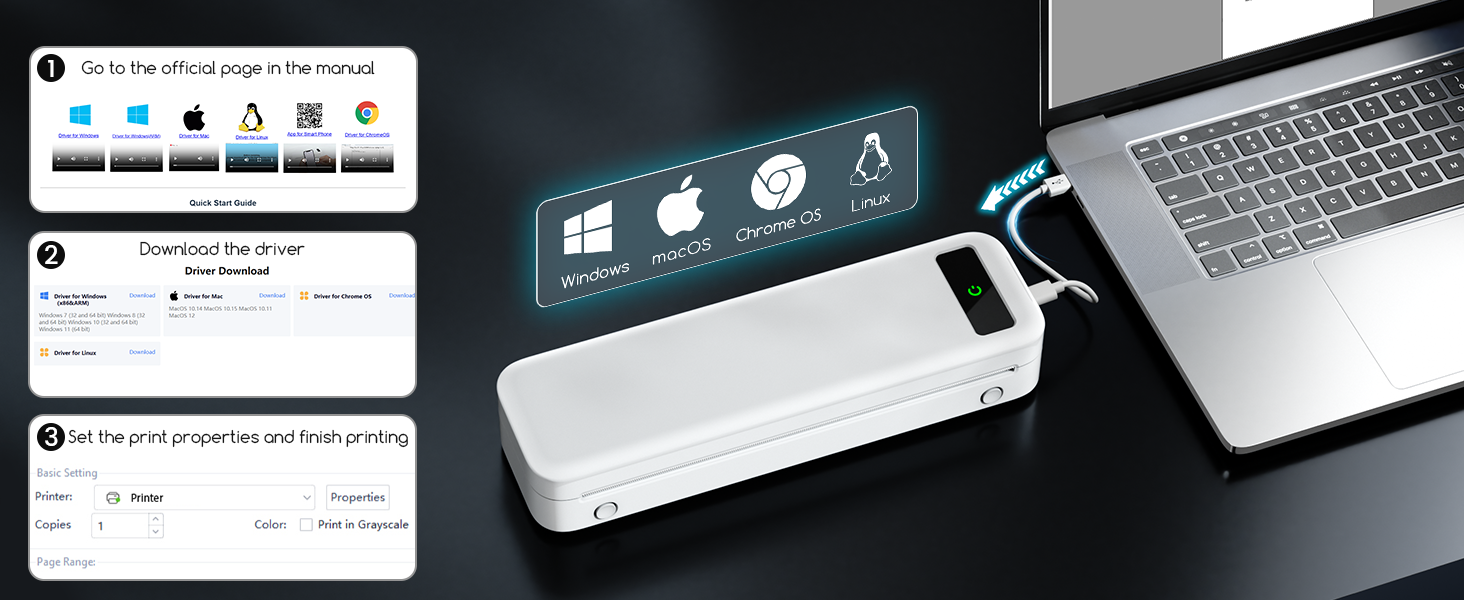
For laptop and computer connections, only USB is supported. You will need to download the appropriate driver.
- اہلکار کا دورہ کریں۔ website mentioned in your manual to download the driver for your operating system (Windows, macOS, Chrome OS, Linux).
- آن اسکرین ہدایات پر عمل کرتے ہوئے ڈرائیور کو انسٹال کریں۔
- فراہم کردہ USB-C کیبل کا استعمال کرتے ہوئے پرنٹر کو اپنے کمپیوٹر سے جوڑیں۔
- You can now select the printer and adjust print settings from your computer's print dialogue.

Image: The printer connected to a laptop via USB, indicating compatibility with various operating systems.
4. آپریٹنگ ہدایات
4.1 پرنٹنگ دستاویزات
Once connected via Bluetooth (mobile) or USB (computer), you can print various document types. The printer supports common file formats such as Word, TXT, PDF, Excel, and JPG.
- وہ دستاویز یا تصویر کھولیں جسے آپ پرنٹ کرنا چاہتے ہیں۔
- اپنی درخواست سے پرنٹ کا اختیار منتخب کریں۔
- Choose the TATTMUSE printer from the list of available printers.
- ضرورت کے مطابق پرنٹ سیٹنگز (مثلاً کاغذ کا سائز، کاپیوں کی تعداد) کو ایڈجسٹ کریں۔
- پرنٹ کا کام شروع کریں۔

Image: The printer's versatility in handling different paper sizes and document formats for various printing needs.
The printer is designed for high-quality black and white printing with 300 DPI resolution, suitable for text and basic graphics.

Image: A visual comparison highlighting the superior print clarity of 300 DPI offered by this printer.
The printer's compact and portable design makes it ideal for various environments, including business travel, home office, school, and on-site projects.

تصویر: سابقamples of the printer's versatile applications across various professional and personal settings.
Video: Demonstrates the compact size and inkless printing capability of the portable thermal printer.
Video: Shows the inkless portable printer in various travel, car, and home use scenarios.
5 دیکھ بھال
5.1 Inkless Technology
This printer utilizes advanced thermal technology, eliminating the need for ink, toner, or ribbons. This means no messy refills, clogging issues, or cleaning problems associated with traditional printers. Only thermal paper is required for printing.

Image: Illustrates the benefit of inkless printing, eliminating the need for ink cartridges and toner.
5.2 پرنٹر کی صفائی
To ensure optimal print quality and longevity, periodically clean the print head and paper path. Use a soft, lint-free cloth slightly dampisopropyl الکحل کے ساتھ ختم. صاف کرنے سے پہلے یقینی بنائیں کہ پرنٹر بند ہے اور بجلی سے منقطع ہے۔
5.3 بیٹری کی دیکھ بھال
To maximize battery life, avoid fully discharging the battery frequently. Store the printer in a cool, dry place when not in use for extended periods. Charge the printer regularly, even if not in active use, to maintain battery health.
6 خرابیوں کا سراغ لگانا
| مسئلہ | ممکنہ وجہ | حل |
|---|---|---|
| پرنٹر آن نہیں ہو رہا ہے۔ | کم بیٹری؛ پاور بٹن درست طریقے سے نہیں دبایا گیا۔ | Charge the printer fully. Press and hold the power button for a few seconds. |
| بلوٹوتھ کے ذریعے مربوط نہیں ہو سکتا | Bluetooth is off on device; Printer not in pairing mode; App issue. | Ensure Bluetooth is enabled on your device. Restart the printer and app. Follow app's connection steps. |
| Poor print quality (faint/streaky) | Incorrect paper type; Print head dirty; Low battery. | Ensure you are using thermal paper. Clean the print head. Charge the printer. |
| کاغذ کا جام | Paper not loaded correctly; Foreign object in paper path. | Turn off the printer, open the cover, and carefully remove any jammed paper. Ensure paper is aligned properly. |
| پرنٹر کو کمپیوٹر سے پہچانا نہیں گیا ہے۔ | Driver not installed; Loose USB connection. | Install the correct driver from the official website. Ensure the USB cable is securely connected. |
For further assistance, please refer to the detailed troubleshooting section in the official app or contact customer support.
7. مصنوعات کی تفصیلات
| فیچر | تفصیل |
|---|---|
| برانڈ | TATTMUSE |
| ماڈل کا نام | A285M |
| پرنٹنگ ٹیکنالوجی | تھرمل |
| کنیکٹوٹی ٹیکنالوجی | بلوٹوتھ، یو ایس بی |
| پرنٹر آؤٹ پٹ | مونوکروم |
| زیادہ سے زیادہ پرنٹ کی رفتار (مونوکروم) | 7 پی پی ایم |
| زیادہ سے زیادہ ان پٹ شیٹ کی گنجائش | 160 شیٹس |
| تائید شدہ کاغذ کے سائز | 8.5'' x 11'' US Letter, A4, 4.33'', 3.14'', 2.08'' Inches |
| مصنوعات کے طول و عرض | 10.39 x 3.07 x 1.77 انچ |
| شے کا وزن | 1.5 پاؤنڈ |
| بیٹری | 2600mAh rechargeable battery (included) |
| ہم آہنگ آلات | اسمارٹ فونز، پی سی، ٹیبلیٹس، لیپ ٹاپ |
| کنٹرول کا طریقہ | ایپ |
8. وارنٹی اور سپورٹ
For warranty information and technical support, please refer to the contact details provided in the product packaging or visit the official TATTMUSE webسائٹ کسی بھی وارنٹی دعووں کے لیے خریداری کے ثبوت کے طور پر اپنی خریداری کی رسید رکھیں۔


