1. تعارف
This manual provides detailed instructions for the installation, operation, and maintenance of your CGOGC Car Android Stereo for Mitsubishi Outlander Sport 2011-2017. Please read this manual thoroughly before use to ensure proper functionality and safety.
2. مصنوعات کی خصوصیات
- مطابقت: Suitable for Mitsubishi Outlander Sport 2011-2017.
- Built-in Carplay and Android Auto: Supports wireless and wired connections for superior voice assist control and access to phone functions (music, GPS navigation, calls, notifications, messages).
- طاقتور ہارڈ ویئر: Android smart operating system, Octa Core 2.0GHz processor, 2GB RAM, 32GB ROM, 10-inch Super Clear IPS Screen (1280*720 resolution).
- Rich Functions: GPS navigation, FM/AM/RDS radio, Bluetooth, Bluetooth music, USB, multi-format music player, 1080p video player, 5G WiFi, APP download, backup camera support, audio output, AUX audio and video input, external microphone, SWC steering wheel control.
- DSP Digital Processing Audio: Built-in DSP sound effect processing chip with 6 sound settings (Smart Bass, Balance, Emperor, 30-EQ, Loudness, Filter) and TDA7388 power amplifier chip for customized sound.
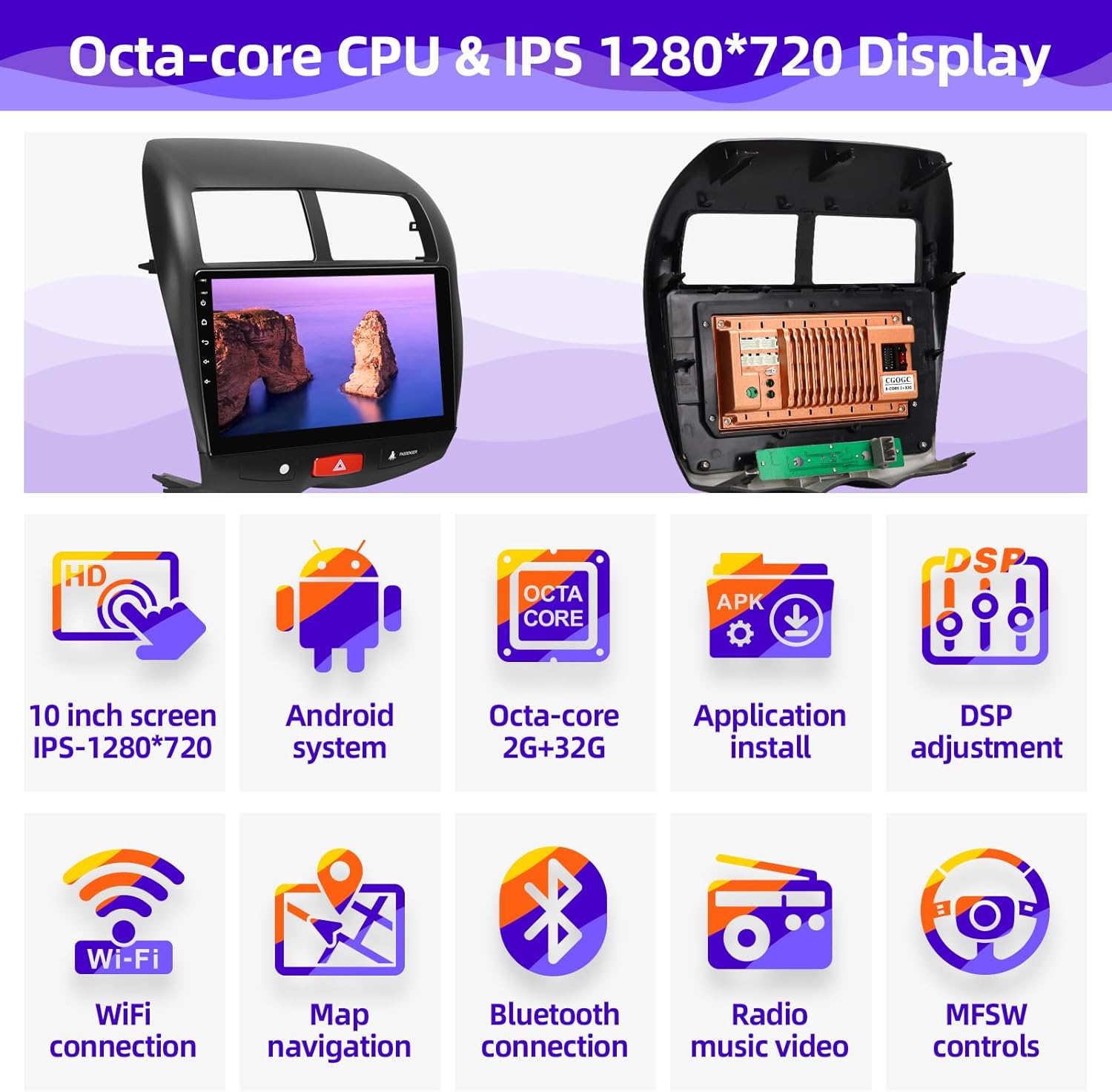
شکل 1: کلیدی خصوصیات ختمview
3. پیکیج کے مشمولات
تصدیق کریں کہ پیکیج میں تمام اجزاء موجود ہیں:
- Head Unit (Car Radio)
- پاور کیبل
- اڈاپٹر کیبل
- آرسیی کیبل
- Dual USB Cables
- Camera (if included in your package)
- Camera IN Cable
- GPS اینٹینا
- بیرونی مائیکروفون
- تنصیب کا آلہ

Figure 2: Product Accessory List
4. انسٹالیشن گائیڈ
4.1 پری انسٹالیشن چیک
Before beginning installation, ensure your vehicle is compatible with the unit (Mitsubishi Outlander Sport 2011-2017). Disconnect the vehicle's battery to prevent electrical shorts.
4.2 Removing the Original Radio
Carefully use the provided installation tool to pry open the trim around the original car radio player. Once the trim is loose, remove the screws securing the original unit and gently pull it out.

شکل 3: تنصیب سے پہلے اور بعد میں موازنہ
4.3 وائرنگ رابطے
Connect the harness plugs to the corresponding sockets on the back of the new head unit. Ensure all connections are secure. Refer to the wiring diagram below for detailed connections.
- USB-1 پورٹ
- USB-2 پورٹ
- RCA Cable Connection Plug
- External Microphone Connection Plug
- Radio Antenna Connection Plug
- Power and Speaker Connection Plugs
- بیک اپ کیمرہ
- GPS اینٹینا
- Backup Camera Video Input Plug
- Backup Camera Detection Cable
- Backup Camera Ground Cable
- Backup Camera Power Supply 12V
- Backup Camera Video Cable

Figure 4: Head Unit Wiring Diagram
4.4 Installing the New Head Unit
Once all connections are made, carefully slide the new head unit into the center console opening until it clicks into place. Secure it with screws if necessary and reattach the trim.
Video 1: Product Installation and Demo. This video demonstrates the step-by-step installation process and showcases various features of the car multimedia player. Note: The video features a Jeep Renegade, but the installation steps and product functionalities are generally applicable.
5. آپریٹنگ ہدایات
5.1 پاور آن/آف
Press and hold the power button (usually located on the front panel) to turn the unit on or off. A short press typically mutes/unmutes audio.
5.2 ٹچ اسکرین نیویگیشن
The unit features a responsive 10-inch IPS touchscreen. Navigate through menus and applications by tapping, swiping, and pinching gestures similar to a smartphone or tablet.
5.3 اسٹیئرنگ وہیل کنٹرولز (SWC)
The unit supports existing steering wheel controls for convenient operation. Functions such as volume control, track skipping, and mode switching can be mapped through the system settings.

شکل 5: اسٹیئرنگ وہیل کنٹرول کی فعالیت
6. Media and Connectivity
6.1 وائرلیس کارپلے اور اینڈرائیڈ آٹو
Connect your iPhone or Android device wirelessly or via USB to access navigation, music, calls, and messages directly on the stereo display. This feature allows for voice control via Siri or Google Assistant.

Figure 6: Wireless Carplay and Android Auto Interface
6.2 بلوٹوتھ کنکشن
Pair your smartphone via Bluetooth for hands-free calling and audio streaming. Navigate to the Bluetooth settings on the head unit and your phone to initiate pairing.
6.3 FM/AM/RDS ریڈیو
Access FM and AM radio stations. The RDS (Radio Data System) function provides additional information like station name and song title where available.
6.4 Music and Video Playback
The unit supports various audio and video formats (MP3, APE, FLAC, WAV, MP4, AVI, MKV, WMV). Play media from USB drives or internal storage. Enjoy 1080p video decoding and split-screen display for multitasking.
6.5 Wi-Fi and App Installation
Connect to a Wi-Fi hotspot to download and install applications from the Google Play Store, browse the internet, and stream online content.
7. Sound Settings (DSP)
The built-in DSP chip allows for advanced audio customization. Access the DSP settings to adjust:
- Equalizer کی: Adjust 30-band EQ settings for various music genres (Flat, Pop, Rock, Jazz, Classic, User).
- بلند آواز: Control low/high frequency gain and Smart Bass.
- فلٹر: Adjust high-pass (HPF) and low-pass (LPF) filter frequencies for front and rear speakers.
- توازن: Adjust sound field balance to optimize audio for different seating positions.
- آواز میں تاخیر: Adjust the time delay for each speaker based on its distance from the listener.

Figure 7: DSP Sound Settings Interface
8. نیویگیشن
The unit includes GPS navigation with support for online and offline maps. You can install various navigation applications from the Google Play Store to suit your preferences.

شکل 8: GPS نیویگیشن انٹرفیس
9. پیچھے View کیمرہ
The system supports an HD backup camera for enhanced safety during reversing. The display automatically switches to the camera feed when the vehicle is in reverse gear.

Figure 9: HD Backup Camera View
10. وضاحتیں
| فیچر | تفصیل |
|---|---|
| برانڈ | CGOGC |
| گاڑی کی خدمت کی قسم | کار |
| اسکرین کا سائز | 10 انچ |
| خصوصی خصوصیت | ٹچ اسکرین |
| کنیکٹوٹی ٹیکنالوجی | بلوٹوتھ، یو ایس بی، وائی فائی |
| نقشہ کی قسم | شمالی امریکہ |
| آپریٹنگ سسٹم | اینڈرائیڈ |
| میموری ذخیرہ کرنے کی صلاحیت | 32 جی بی |
| انسانی انٹرفیس ان پٹ | ٹچ اسکرین |
| کنٹرول کا طریقہ | چھوئے۔ |
| تائید شدہ سیٹلائٹ نیویگیشن سسٹم | جی پی ایس |
11 خرابیوں کا سراغ لگانا
یہ سیکشن عام مسائل کو حل کرتا ہے جن کا آپ کو سامنا ہو سکتا ہے۔ مزید پیچیدہ مسائل کے لیے، براہ کرم کسٹمر سپورٹ سے رابطہ کریں۔
11.1 Airbag Warning Light After Installation
مسئلہ: The airbag warning light illuminates after installing the stereo.
حل: This can occur if the factory hazard button circuit board is unplugged and the ignition is turned on before the new stereo and original circuit board are fully reconnected. Ensure the ignition key is out of the ignition until all components, including the original hazard circuit board and the new circuit board, are securely plugged in. If the light is already on, a diagnostic scanner may be required to clear the fault code.
11.2 اسپیکرز سے کوئی آواز نہیں۔
مسئلہ: No audio output after installation.
حل: Double-check all speaker wire connections in the harness. Ensure they are correctly matched and securely plugged in. Verify that the volume is not muted and the audio source is correctly selected.
11.3 Backup Camera Not Displaying
مسئلہ: The backup camera image does not appear when reversing.
حل: Confirm that the backup camera video input plug, detection cable, and ground cable are all correctly connected to the head unit and the camera. Ensure the camera is receiving power (12V). Some vehicles may require a specific trigger wire to activate the camera display.
12 دیکھ بھال
اپنی کار سٹیریو کی لمبی عمر اور بہترین کارکردگی کو یقینی بنانے کے لیے، دیکھ بھال کے ان رہنما خطوط پر عمل کریں:
- صفائی: اسکرین اور بیرونی حصے کو صاف کرنے کے لیے نرم، خشک کپڑا استعمال کریں۔ کھرچنے والے کلینر یا سالوینٹس سے پرہیز کریں۔
- سافٹ ویئر اپ ڈیٹس: وقتاً فوقتاً سسٹم سیٹنگز یا مینوفیکچررز کے ذریعے سافٹ ویئر اپ ڈیٹس کو چیک کریں۔ webسائٹ کو یقینی بنانے کے لیے کہ آپ کے پاس تازہ ترین خصوصیات اور بگ فکسز ہیں۔
- درجہ حرارت: لمبے عرصے کے لیے یونٹ کو انتہائی درجہ حرارت کے سامنے لانے سے گریز کریں۔
13. وارنٹی اور سپورٹ
Your CGOGC Car Android Stereo comes with a 1-year warranty from the date of purchase. This warranty covers manufacturing defects and malfunctions under normal use.
For technical support, warranty claims, or any questions regarding your product, please contact CGOGC customer service. You can typically find contact information by clicking "Sold by: CGOGC" on the product page and then "Ask question".

Figure 10: Contact Customer Support