1. تعارف
This manual provides comprehensive instructions for the setup, operation, and maintenance of your ProtoArc KM310 Wireless Mechanical Keyboard and Mouse combo. This device offers versatile connectivity options, including 2.4G wireless and dual Bluetooth, designed for multi-device use across various operating systems.

Image 1.1: ProtoArc KM310 Wireless Mechanical Keyboard and Mouse Combo.
2. پیکیج کے مشمولات
تصدیق کریں کہ تمام اشیاء پیکیج میں موجود ہیں:
- ProtoArc KM310 Wireless Mechanical Keyboard
- ProtoArc Wireless Mouse
- USB-C چارجنگ کیبل
- 2.4G USB Receiver (stored in the mouse)
- صارف دستی (یہ دستاویز)

Image 2.1: ProtoArc KM310 package contents including keyboard, mouse, USB-C cable, and user manual.
3. پروڈکٹ ختمview
3.1 کی بورڈ لے آؤٹ اور خصوصیات
The KM310 keyboard features a full-size 108-key layout with low-profile mechanical red switches for a smooth and quiet typing experience. It includes a numeric keypad and dedicated media keys.
3.2 Mouse Components
The ergonomic mouse includes standard left/right click buttons, a scroll wheel, a DPI switch, and forward/backward side buttons. The 2.4G USB receiver is stored in a compartment on the underside of the mouse.

تصویر 3.1: پھٹا view illustrating the internal components and weight distribution of the ProtoArc wireless mouse.
4. سیٹ اپ ہدایات
4.1 آلات کو چارج کرنا
Both the keyboard and mouse are equipped with rechargeable batteries. Use the provided USB-C cable to charge them. A full charge typically takes 2-3 hours and provides up to 150 days of standby time.
- Connect the USB-C end of the cable to the charging port on the keyboard/mouse.
- Connect the USB-A end to a power source (e.g., computer USB port, USB wall adapter).
- The charging indicator light will show charging status and turn off when fully charged.

Image 4.1: The keyboard and mouse being charged via USB-C cables.
4.2 Connecting via 2.4G USB Receiver
This method provides a stable wireless connection for your keyboard and mouse.
- Locate the 2.4G USB receiver in the compartment on the underside of the mouse.
- USB ریسیور کو اپنے کمپیوٹر پر دستیاب USB پورٹ میں لگائیں۔
- کی بورڈ اور ماؤس کو ان کے متعلقہ پاور سوئچز کا استعمال کرتے ہوئے آن کریں۔
- The devices should automatically connect to your computer.
4.3 بلوٹوتھ کے ذریعے جڑنا
The KM310 supports dual Bluetooth connections, allowing you to pair with up to two Bluetooth-enabled devices.
- کی بورڈ اور ماؤس کو آن کریں۔
- کی بورڈ پر، دبائیں اور دبائے رکھیں بی ٹی 1 or بی ٹی 2 key for 3-5 seconds until the indicator light flashes, indicating pairing mode.
- On the mouse, press the channel switch button on the underside to select بی ٹی 1 or بی ٹی 2, then press and hold the button for 3-5 seconds until the indicator light flashes.
- On your device (computer, tablet, smartphone), go to Bluetooth settings and search for "ProtoArc KM310 Keyboard" and "ProtoArc KM310 Mouse".
- Select the devices to pair. Once connected, the indicator light will stop flashing.
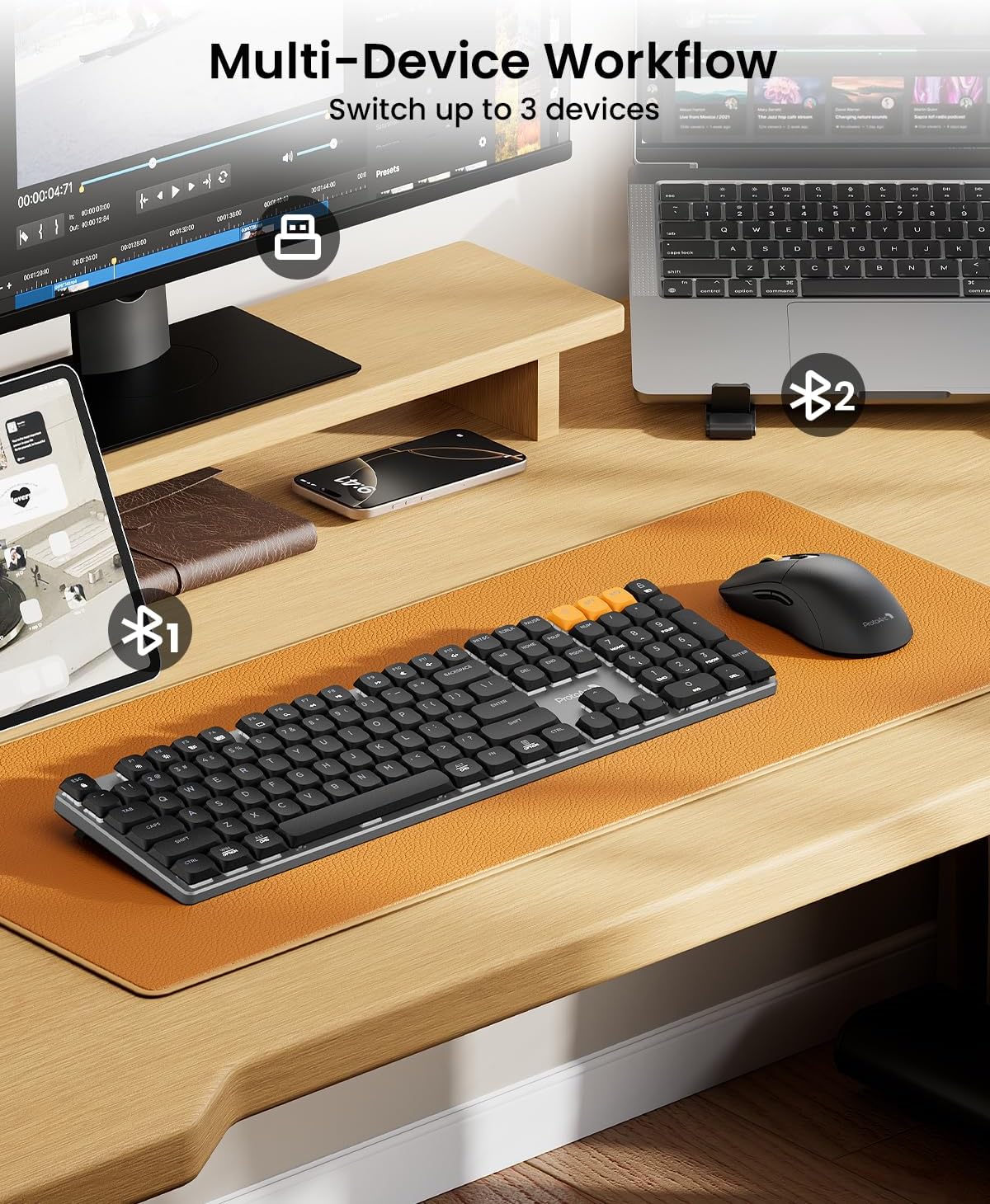
Image 4.2: The KM310 keyboard and mouse connected to a desktop PC via 2.4G, a laptop via Bluetooth 1, and a tablet via Bluetooth 2.
5. آپریٹنگ ہدایات
5.1 آلات کے درمیان سوئچنگ
منسلک آلات کے درمیان سوئچ کرنے کے لیے:
- کی بورڈ: دبائیں 2.4 جی, بی ٹی 1، یا بی ٹی 2 key to instantly switch to the corresponding paired device.
- ماؤس: Press the channel switch button on the underside of the mouse to cycle between 2.4 جی, بی ٹی 1، اور بی ٹی 2.
5.2 کی بورڈ کے افعال
- کم پرو۔file Red Switches: Designed for a smooth, linear, and quiet typing experience.
- سایڈست جھکاؤ ٹانگیں: Extend the tilt legs on the underside of the keyboard to adjust the typing angle for ergonomic comfort (6° and 9° tilt options).
- میڈیا کیز: Use the function keys (F1-F12) in combination with the Fn key for media control (e.g., volume, play/pause).
- OS مطابقت: The keyboard is compatible with Windows and macOS. Specific key legends may vary slightly for different operating systems.

Image 5.1: Detail of the low-profile mechanical red switches on the ProtoArc keyboard, designed for fluid and responsive typing with low sound.

Image 5.2: The keyboard features adjustable tilt legs, offering 3°, 6°, and 9° angles for personalized comfort.
5.3 ماؤس کے افعال
- ڈی پی آئی ایڈجسٹمنٹ: دبائیں ڈی پی آئی button (located behind the scroll wheel) to cycle through 3 DPI levels (800/1200/1600). This adjusts cursor sensitivity.
- ایرگونومک ڈیزائن: The mouse is contoured for a natural grip, reducing hand fatigue during extended use.
- خاموش کلکس: The mouse features quiet click buttons, minimizing noise in shared environments.
- آگے/پیچھے بٹن: Use the side buttons for quick navigation in web براؤزر اور file متلاشی

Image 5.3: The mouse offers 3 adjustable DPI settings (800, 1200, 1600) and features a silent click design.

Image 5.4: The ProtoArc mouse features an ultra-lightweight design (63g) compared to traditional mice (approx. 100g), reducing hand fatigue.
6 دیکھ بھال
6.1 صفائی
- Disconnect the keyboard and mouse from power and your devices before cleaning.
- تھوڑا سا نرم، لنٹ سے پاک کپڑا استعمال کریں۔ampened with water or a mild cleaning solution to wipe surfaces.
- For keyboard keys, use compressed air to remove dust and debris from between the keycaps.
- Avoid using harsh chemicals, abrasive cleaners, or spraying liquids directly onto the devices.
6.2 اسٹوریج
When not in use for extended periods, store the keyboard and mouse in a cool, dry place away from direct sunlight and extreme temperatures. Ensure they are fully charged before long-term storage to preserve battery health.
7 خرابیوں کا سراغ لگانا
| مسئلہ | حل |
|---|---|
| Keyboard/Mouse not connecting via 2.4G |
|
| Keyboard/Mouse not connecting via Bluetooth |
|
| وقفہ یا وقفے وقفے سے رابطہ |
|
| Keys or mouse buttons unresponsive |
|
| ماؤس کا کرسر بے ترتیب ہے یا حرکت نہیں کر رہا ہے۔ |
|
8. وضاحتیں
| فیچر | تفصیل |
|---|---|
| ماڈل | KM310 |
| کنیکٹوٹی | 2.4G وائرلیس، بلوٹوتھ (BT1، BT2) |
| کی بورڈ کی قسم | Mechanical, Low-Profile ریڈ سوئچز |
| کی بورڈ لے آؤٹ | Full-size 108-key |
| ماؤس ڈی پی آئی لیولز | 800/1200/1600 |
| ماؤس ٹریکنگ | آپٹیکل |
| بیٹری کی قسم | ریچارج ایبل (USB-C) |
| چارج کرنے کا وقت | تقریبا 2-3 گھنٹے |
| اسٹینڈ بائی ٹائم | 150 دن تک |
| مطابقت | Windows 7/8/10, Mac OS X 10.12+, Android 4.3+ |
| کی بورڈ کے طول و عرض | 43 سینٹی میٹر x 16.9 سینٹی میٹر x 2.6 سینٹی میٹر (16.9 انچ x 6.7 انچ x 1.0 انچ) |
| کی بورڈ کا وزن | 1.06 کلوگرام (2.34 پونڈ) |
| ماؤس کے طول و عرض | 12.5 سینٹی میٹر x 6.4 سینٹی میٹر x 3.9 سینٹی میٹر (4.9 انچ x 2.5 انچ x 1.5 انچ) |
| ماؤس کا وزن | 63 گرام (0.14 پونڈ) |

Image 8.1: Dimensions of the ProtoArc KM310 keyboard and mouse.
9. وارنٹی اور سپورٹ
ProtoArc products are designed for reliability and performance. For information regarding warranty coverage, technical support, or service inquiries, please refer to the warranty card included in your package or visit the official ProtoArc webسائٹ وارنٹی کے دعووں کے لیے اپنی خریداری کی رسید اپنے پاس رکھیں۔


