تعارف
This manual provides comprehensive instructions for the setup, operation, maintenance, and troubleshooting of your Nulea RT07 Wireless Ergonomic Trackball Keyboard. Designed for optimal comfort and efficiency, this keyboard features a split ergonomic layout, integrated trackball, and versatile dual-mode connectivity.
سیٹ اپ گائیڈ
1. ان باکسنگ اور ابتدائی معائنہ
Carefully remove the keyboard from its packaging. Ensure all components, including the keyboard, USB-C charging cable, and 2.4G USB receiver, are present and undamaged.

Image: The Nulea RT07 Wireless Ergonomic Trackball Keyboard, showcasing its split design, integrated wrist rest, and red trackball.
2. کی بورڈ چارج کرنا
The keyboard is equipped with a built-in rechargeable battery. Connect the provided USB-C cable to the charging port located on the top edge of the keyboard. Plug the other end into a USB power source (e.g., computer USB port, wall adapter). A full charge typically takes approximately 2 hours and provides extended usage time.

Image: Close-up of the Nulea RT07 keyboard showing the USB-C charging port on its top edge, with a charging cable connected.
3. پر / آف پاور
Locate the power switch on the back of the keyboard. Slide the switch to the "ON" position to power on the device. Slide it to "OFF" when not in use to conserve battery life.
4. اپنے آلے سے جڑنا
The Nulea RT07 supports dual-mode connectivity: Bluetooth and 2.4G USB wireless.
- 2.4G USB Wireless Connection:
- Locate the 2.4G USB receiver stored magnetically in the back of the keyboard.
- USB ریسیور کو اپنے کمپیوٹر پر دستیاب USB پورٹ میں لگائیں۔
- دبائیں Fn + 4۔ on the keyboard. The mode indicator light will illuminate, indicating the keyboard has switched to 2.4G wireless mode.
- کی بورڈ کو خود بخود آپ کے آلے سے جڑ جانا چاہیے۔
- Bluetooth Connection (Up to 3 Devices):
- دبائیں Fn + 1۔, Fn + 2۔، یا Fn + 3۔ بلوٹوتھ چینل کو منتخب کرنے کے لیے۔
- Press and hold the selected Fn + (1/2/3) key for 3 seconds to enter pairing mode. The Bluetooth indicator will flash green while searching for available Bluetooth devices.
- On your device (computer, laptop, tablet), go to Bluetooth settings and select "Nulea RT07" from the list of available devices to pair.
- جوڑا بننے کے بعد، اشارے کی روشنی چمکنا بند کر دے گی۔

Image: The Nulea RT07 keyboard wirelessly connected to multiple devices (laptop, desktop, tablet) via Bluetooth and 2.4G, illustrating its multi-device switching capability.
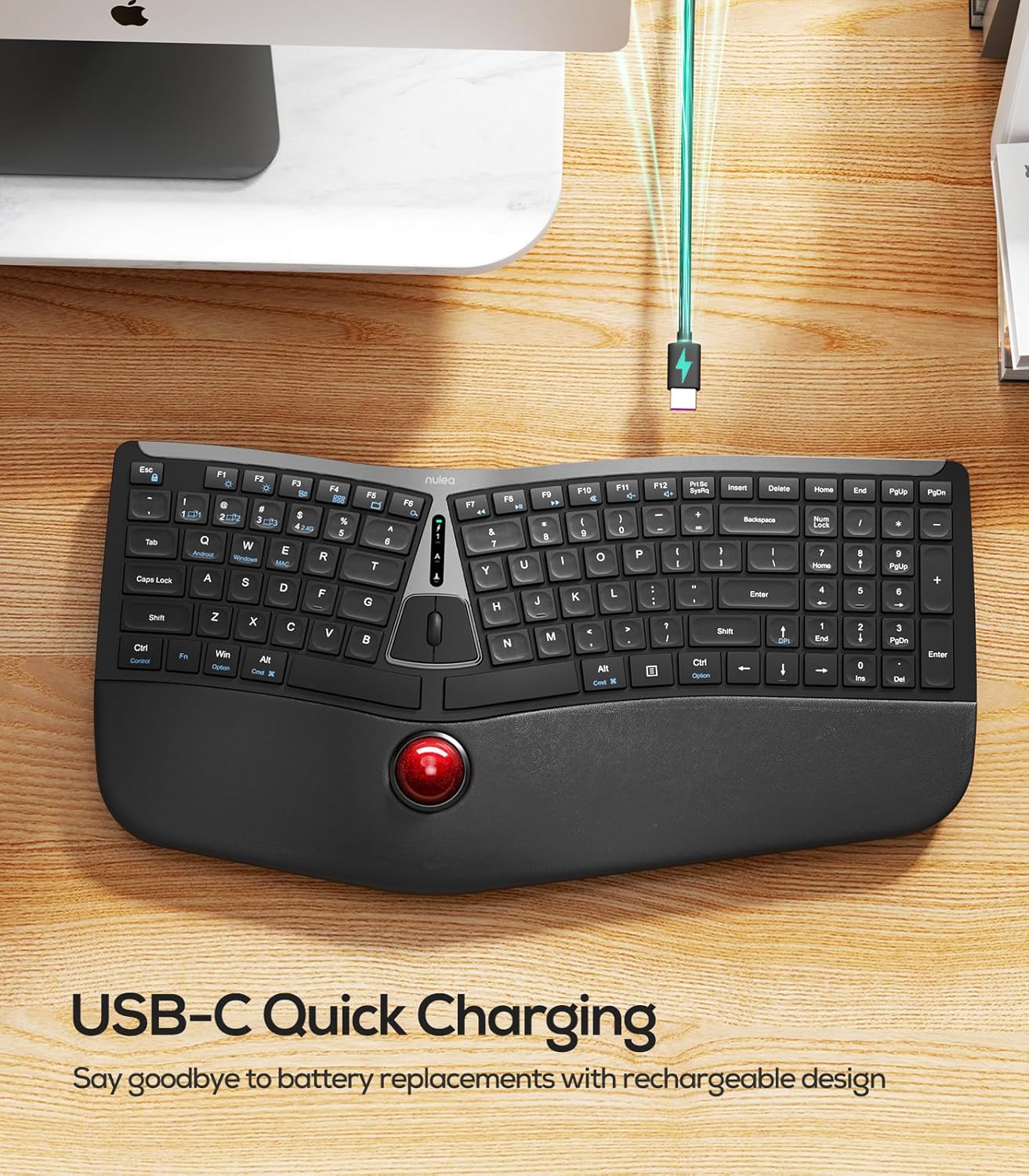
Image: A diagram illustrating the multiple connection options for the Nulea RT07 keyboard, including Bluetooth channels 1, 2, 3 and 2.4G wireless connection.
آپریٹنگ ہدایات
1. Ergonomic Design and Typing Posture
The Nulea RT07 features an ergonomic split layout designed to reduce forearm muscle twisting and promote a natural typing posture. The integrated wrist rest provides support, keeping your wrists in a comfortable position during extended use.

Image: A person typing on the Nulea RT07 ergonomic keyboard, demonstrating the natural and comfortable typing posture facilitated by its split layout and wrist rest.
2. Trackball Functionality
The integrated trackball allows you to control the cursor without moving your hand from the wrist rest, reducing fatigue and boosting productivity. Use your thumb to control the trackball for precise navigation.
- ٹریک بال: Control cursor movement with your thumb.
- Left/Right Mouse Buttons: Located above the trackball.
- Middle Mouse Button/Scroll Wheel: For scrolling through documents or web صفحات
- ڈی پی آئی ایڈجسٹمنٹ: دبائیں Fn + اوپر تیر to cycle through DPI settings (200, 400, 800, 1200) for customized cursor speed.

Image: Close-up of the Nulea RT07 keyboard's trackball, showing the thumb controlling it, along with a diagram illustrating DPI adjustment settings.
3. Scissor-Switch Keys
The keyboard features scissor-switch keys, offering exceptional stability, rapid rebound, and even pressure for a smooth and responsive typing experience.
4. بیک لائٹنگ
The keyboard includes LED backlighting for improved visibility in various lighting conditions. Use the dedicated backlight control keys to adjust brightness or turn the backlighting on/off.
5. آپریٹنگ سسٹم کی مطابقت
The Nulea RT07 is compatible with both Mac and Windows operating systems. Dedicated keys for "Win/Alt" and "Alt/Cmd" are provided for seamless switching between environments.
دیکھ بھال
1. کی بورڈ کی صفائی
- تھوڑا سا نرم، لنٹ سے پاک کپڑا استعمال کریں۔ampened with water or a mild cleaning solution to wipe down the keycaps and surfaces.
- Avoid excessive moisture and harsh chemicals.
- For the trackball, it can be popped out by pushing from the bottom for cleaning. Use a soft cloth to clean the trackball and its housing.
خرابی کا سراغ لگانا
1۔ کی بورڈ جواب نہیں دے رہا ہے۔
- یقینی بنائیں کہ کی بورڈ آن ہے۔
- بیٹری کی سطح چیک کریں اور اگر ضروری ہو تو چارج کریں۔
- For 2.4G connection, ensure the USB receiver is securely plugged into your device and the keyboard is in 2.4G mode (Fn + 4۔).
- For Bluetooth connection, ensure the keyboard is in the correct Bluetooth channel (Fn + 1/2/3) and successfully paired with your device. Try re-pairing if necessary.
- Try connecting the keyboard to a different USB port or device to rule out port-specific issues.
2. Lag or Disconnection
- Ensure the keyboard is within the effective range of your device (typically up to 10 meters for wireless connections).
- دوسرے وائرلیس آلات سے مداخلت کو کم سے کم کریں۔
- یقینی بنائیں کہ کی بورڈ پوری طرح سے چارج ہے۔
3. Trackball Not Functioning Correctly
- Clean the trackball and its housing as described in the Maintenance section.
- Adjust the DPI settings (Fn + اوپر تیر) to see if it resolves the issue.
وضاحتیں
| برانڈ | نولیا۔ |
| ماڈل | RT07 |
| کنیکٹوٹی ٹیکنالوجی | 2.4G، بلوٹوتھ |
| کی بورڈ کی تفصیل | Membrane, Ergonomic Split Design with Trackball |
| ہم آہنگ آلات | Laptop, PC, Tablet (Mac/Windows compatible) |
| خصوصی خصوصیت | Ergonomic, Integrated Trackball, USB-C Rechargeable, Backlit |
| شے کا وزن | 2.79 پاؤنڈ |
| پیکیج کے طول و عرض | 17.91 x 9.8 x 2.05 انچ |
| بیٹریاں | 1 9V بیٹریاں درکار ہیں (شامل) |
وارنٹی اور سپورٹ
For warranty information and customer support, please refer to the documentation included with your product or visit the official Nulea webسائٹ وارنٹی کے دعووں کے لیے اپنی خریداری کی رسید اپنے پاس رکھیں۔
آفیشل پروڈکٹ ویڈیوز
Nulea Wireless Ergonomic Trackball Keyboard Review
ویڈیو: ایک تفصیلی دوبارہview of the Nulea Wireless Ergonomic Trackball Keyboard, highlighting its features and benefits for users.
Review of Nulea Ergonomic Trackball Keyboard
ویڈیو: ایک اوورview of the Nulea Ergonomic Trackball Keyboard, demonstrating its ergonomic design and integrated trackball for comfortable use.


